Getting Started: Snowflake Web UI Walkthrough
Once you've created a Snowflake account and logged in, you'll land on the Snowsight interface — Snowflake’s modern web UI designed for ease of use and productivity.
This guide walks you through the key components of the Snowflake Web Interface.
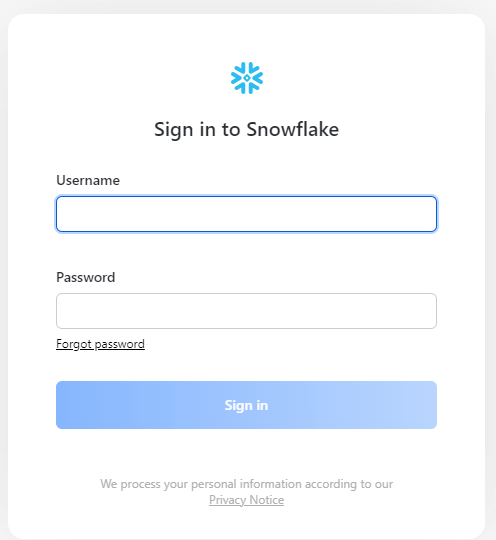
🔑 1. Login Screen
To access Snowflake:
- Go to your unique URL (e.g.,
https://xy12345.ap-south-1.snowflakecomputing.com) - Login using your credentials.
🏠 2. Home Dashboard (Snowsight UI)
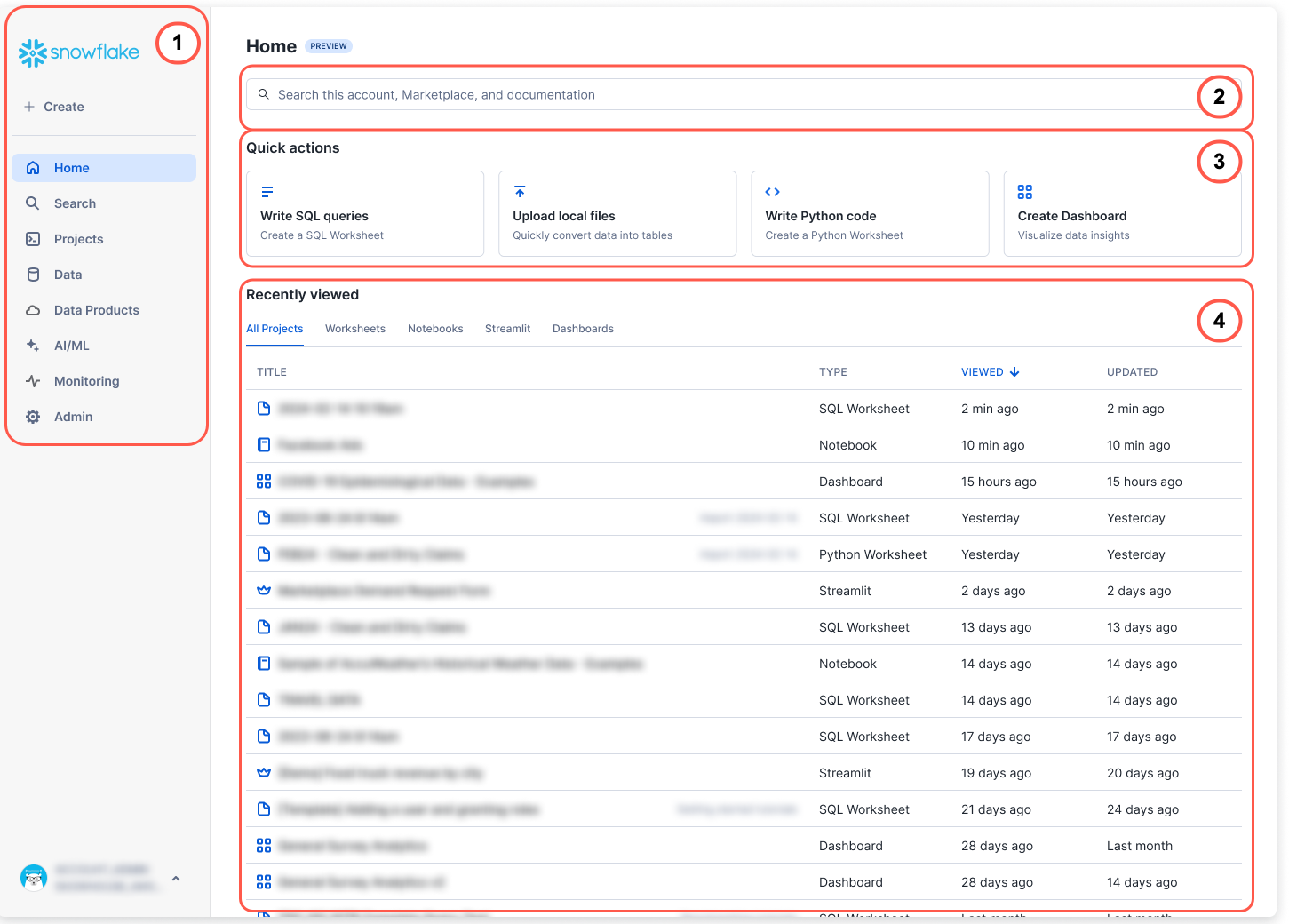
After logging in, you'll see the Home dashboard, which includes:
- Welcome banner with getting-started links
- Quick access to:
- Worksheets
- Databases
- Warehouses
- Admin panel
📑 3. Navigation Sidebar
On the left, you’ll find the Sidebar, the primary way to explore different sections:
- Data – Browse databases, schemas, tables
- Activity – Query history, usage reports
- Warehouses – Manage compute resources
- Admin – Manage users, roles, integrations
- Marketplace – Browse external data sets
💻 4. Worksheets (Query Editor)
The Worksheet area is where you write and execute SQL queries.
- Syntax highlighting
- Auto-complete
- Multi-tab support
You can switch roles, databases, schemas, and warehouses directly from the dropdowns above the query editor.
📊 5. Activity & History
This section helps you track execution history and monitor performance:
- Query History: Review, rerun, or analyze past queries
- Session History: Inspect active sessions
⚙️ 6. Admin Console
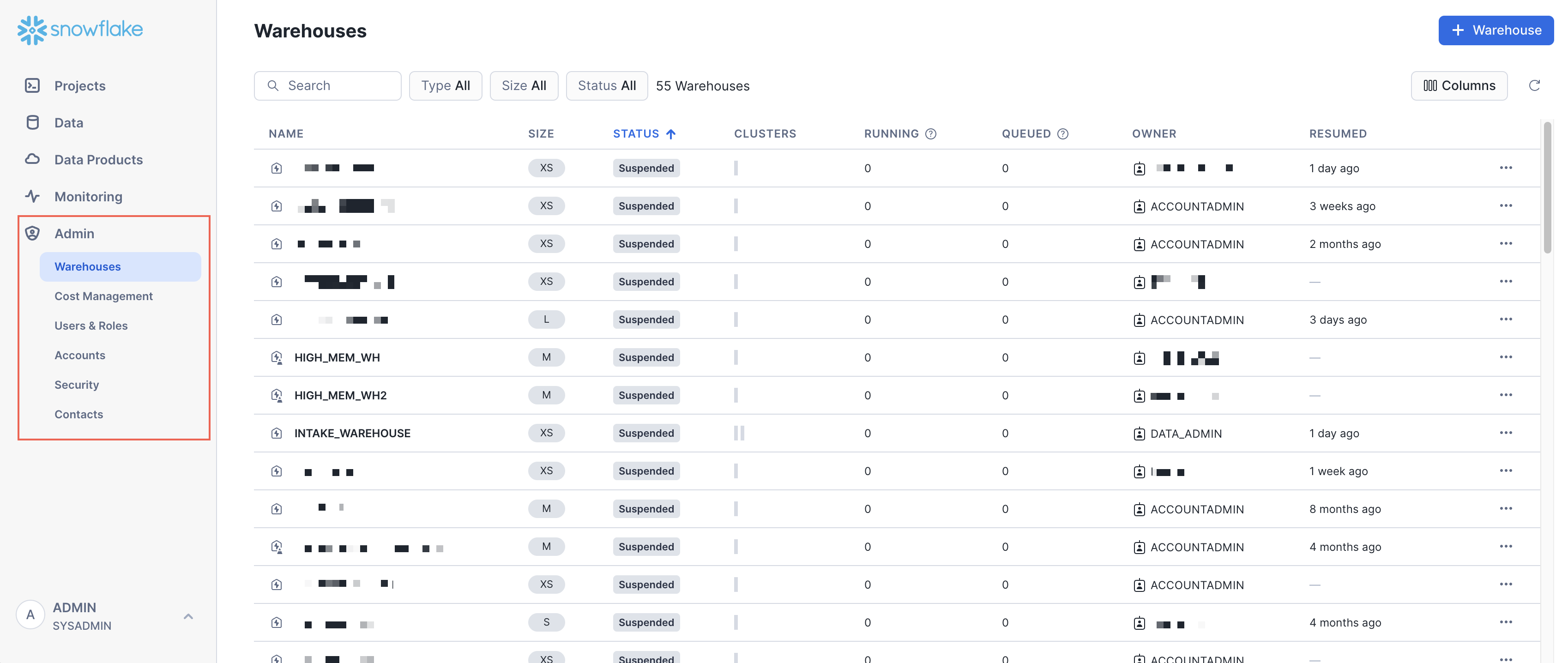
The Admin section allows you to:
- Manage users and roles
- Set up MFA
- Configure security policies
🛠️ 7. Switching to Classic Console
While Snowsight is the default UI, you can still access the Classic Console:
- Click your user icon in the top right
- Choose “Switch to Classic Console”
✅ Summary
| Feature | Purpose |
|---|---|
| Home | Quick access to key objects |
| Sidebar | Navigate databases, roles, and activity |
| Worksheets | Run SQL queries |
| Admin | User & role management |
| Query History | Monitor and debug queries |
🧠 Tip: You can use keyboard shortcuts like
Cmd + Enter(orCtrl + Enter) to run queries quickly!